From Web to Mobile: Converting Three.js to an Android APK
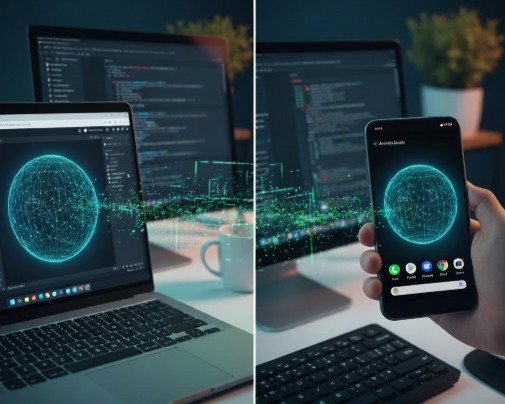
Three.js is a powerful engine for 3D web graphics, but sometimes a browser tab isn't enough. If you want to put your 3D creation on the Google Play Store or simply have it as an icon on your phone, you need to wrap it into a native Android container.
In this tutorial, we will use Capacitor—the modern industry standard for turning web apps into native ones.
1. Project Organization
Before touching any code, you must organize your project files so Capacitor can find them.
- Create a root folder for your project (e.g.,
threejs-native-app). - Inside it, create a folder named
www. - Move your files: Place your
index.htmland all your.js, textures, and CSS files inside thewwwfolder.
Pro Tip: Make sure yourindex.htmluses relative paths (e.g.,<script src="./app.js">) instead of absolute paths (e.g.,/app.js).
2. Initialize the Project
Open your terminal (PowerShell or Terminal) inside your root folder and run the following commands:
Bash
# Initialize a new NPM project
npm init -y

# Install Capacitor Core, CLI, and the Android platform
npm install @capacitor/core @capacitor/cli @capacitor/android
3. Configure Capacitor
You need a configuration file to tell Capacitor your app's name and unique ID. Create a file named capacitor.config.json in your root folder and paste this:
JSON
{
  "appId": "com.yourname.threejsapp",
  "appName": "My 3D App",
  "webDir": "www",
  "bundledWebRuntime": false
}
4. Bridge to Android
Now, create the actual Android project files and sync your Three.js code:
Bash
# Create the android folder
npx cap add android

# Copy your www files into the android project
npx cap copy android
5. Build the APK in Android Studio
Now that the bridge is built, we use Android Studio to compile the final file.
- Open the project: Run
npx cap open android. - Wait for Sync: Look at the bottom right of Android Studio; wait for the "Gradle Sync" to finish.
- Build: Go to Build > Build Bundle(s) / APK(s) > Build APK(s).
- Locate: Once finished, a notification will appear. Click "locate" to find your
app-debug.apk.
6. Testing with the Android Emulator
If you don't have a physical Android device handy, you can test directly on your computer using a Virtual Device.
- In Android Studio, go to Tools > Device Manager.
- Click Create Device and select a modern phone (like Pixel 8).
- Select a System Image (Android 13 or 14 is recommended) and click Finish.
- Press the green Play button in the top toolbar to launch your Three.js app inside the emulator.
Conclusion
You now have a fully functional Android APK! When you update your Three.js code in the www folder, remember to run npx cap copy android and rebuild in Android Studio to see the changes.